Multi-Domain Docker Containers
Use case
We have several server applications in the same development environment, each application is bundled in a Docker container, e.g: "Container A" and "Container B".
With Docker those applications have the same IP address. One way to differentiate and access to an specific application is exposing different ports.
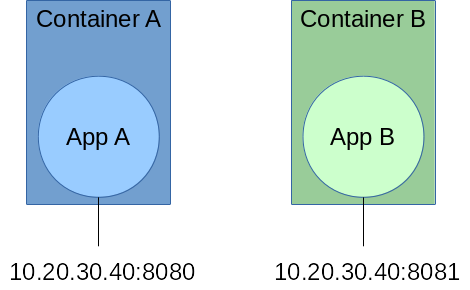
- If we want to call to "Application A" we will do:
GET http://10.20.30.40:8080/colors/red. - If we want to call to "Application B" we will do:
GET http://10.20.30.40:8081/fruits/tomato.
But that solution is a little bit confusing, does 8080 mean we are accessing to "application A"?
It would be simpler and easier to remind something like:
- Calling "Application A":
GET http://a.domain.com/colors/red. - Calling "Application B":
GET http://b.domain.com/fruits/tomato.
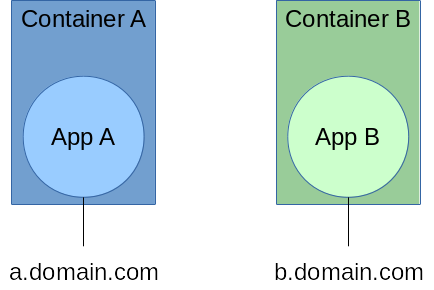
Get that extra semantic value is much simpler than I thought at the beginning and you will see below.
How to Configure Multi-Domain Reverse Proxy
I said it is easy, because we almost have to do nothing, another container will do it for us, especifically we are going to use nginx-proxy, it will automatically generate the required NGINX configurations.
So, we will have 2 applications + 1 proxy, that is 3 containers.
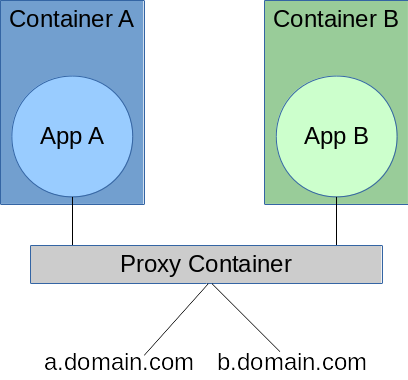
Note: You can download the full example at https://github.com/carlosvin/docker-reverse-proxy-multi-domain.
Example Project Structure
- docker-compose.yaml: Main configuration file describing architecture in previous picture.
- a: Application A directory.
- Dockerfile: Container A configuration file.
- b: Application B directory.
- Dockerfile: Container B configuration file.
Architecture Configuration (docker-compose)
The relationships between containers is the most interesting part in this example.
docker-reverse-proxy-multi-domain/docker-compose.yaml
a:
  build: a                # (4)
  environment:
    VIRTUAL_HOST: a.domain.com    # (1)
  restart: always

b:
  build: b                # (5)
  environment:
    VIRTUAL_HOST:  b.domain.com   # (2)
  restart: always

nginx-proxy:              # (3)
  image: jwilder/nginx-proxy
  ports:
    - "80:80"
    - "443:443"
  volumes:
    - /var/run/docker.sock:/tmp/docker.sock:ro

  restart: always
privileged: true- Configure the domain name for app a.
- Configure the domain name for app b.
- From this line there is proxy configuration (copy/paste part).
- We tell docker-compose has to build Docker images within specified directory.
- For example, we are saying that docker-compose has to build a Docker image using ../b/Dockerfile file.
Application Image Configuration
a/Dockerfile
FROM httpd:2.4                       # (1)
RUN echo "<html><body><h1>A</h1>App A works!</body></html>" > /usr/local/apache2/htdocs/index.html # (2)- We import an image with an apache server.
- It serves a file that prints "Host A" as default page.
The configuration for application B is pretty much the same:
b/Dockerfile
FROM httpd:2.4
RUN echo "<html><body><h1>B</h1>App B works!</body></html>" > /usr/local/apache2/htdocs/index.html
Adding domain names to your development environment configuration
In Linux we just have to map the local address to domain names you have chosen, in the example a.domain.com and b.domain.com.
/etc/hosts
127.0.0.1    localhost.localdomain localhost
::1          localhost6.localdomain6 localhost6
127.0.0.1    a.domain.com         # (1)
127.0.0.1 b.domain.com- We just added last 2 lines.
Everything ready
Now we just have to test the example:
docker-compose build
docker-compose up
The 3 containers are running now.
So we can open our favorite web browser and go to a.domain.com. It will show App A works!. If we go to b.domain.com then we will see App B works!.
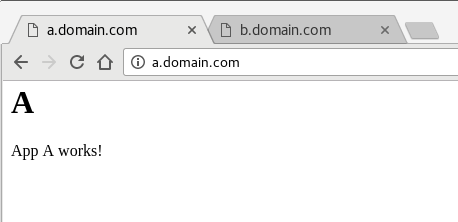
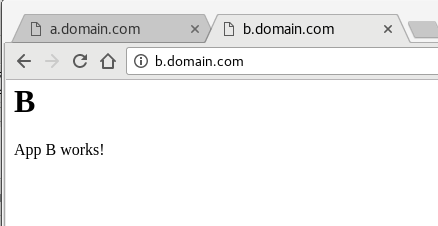
Note: In most of the Linux distros you will need privileges to run Docker commands (
sudo).